File Explorer
Overview
The Ilum File Explorer provides a unified interface for browsing, uploading, and managing files across multiple storage systems. It includes capabilities for data preview, quality profiling, and table creation from raw files.
Background
Data engineering workflows typically involve multiple storage systems such as S3, HDFS, Google Cloud Storage, and Azure Blob Storage. Each system requires:
- Separate web consoles with different authentication mechanisms
- Complex IAM policies and permission management
- Manual schema inference and table creation
- Command-line tools for basic operations
- No visibility into data quality before processing
This creates operational overhead and requires switching between different consoles and authentication mechanisms.
Capabilities
The File Explorer provides the following functionality:
- Browse files across S3, GCS, HDFS, and Azure Storage from a single interface
- Upload files via drag-and-drop interface
- Preview CSV and Parquet file contents without downloading
- Profile data quality with automated statistics
- Create tables from raw files with automatic schema inference
- Generate Spark SQL for table creation
Key Features
1. Storage Navigation
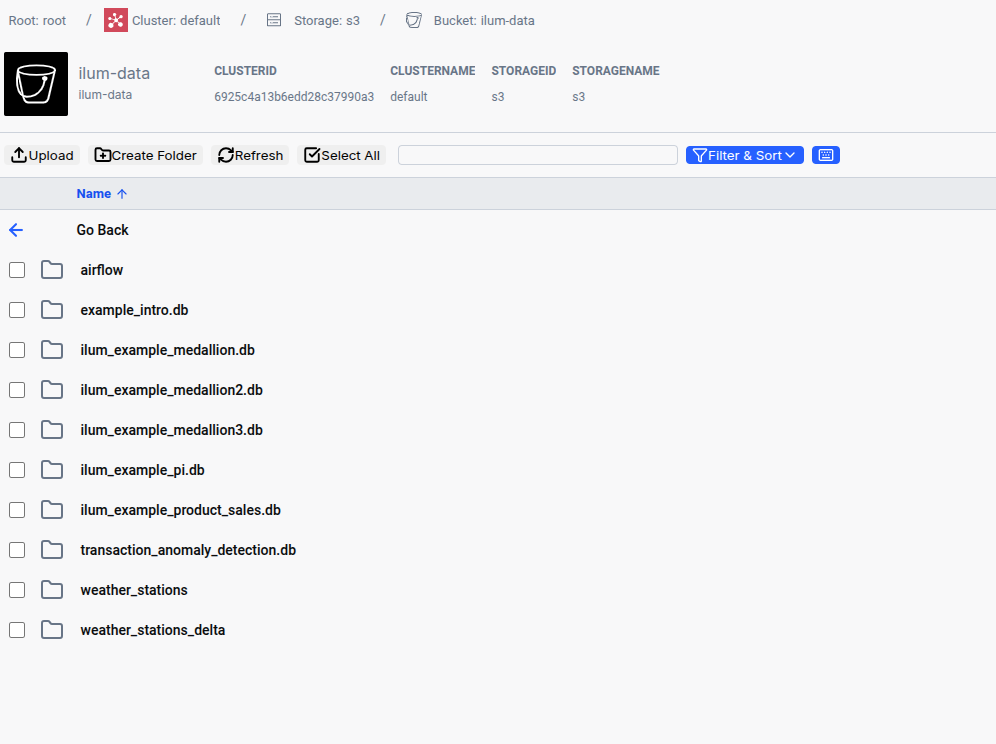
The interface provides access to multiple storage systems through a hierarchical tree view.
Supported Storage Types:
- AWS S3: Access buckets and objects with automatic credential management
- Google Cloud Storage (GCS): Browse folders and files across GCP projects
- Azure Blob Storage (WASBS): Navigate containers and blobs
- HDFS: Explore Hadoop clusters with RPC-based access
Core Operations:
- Navigate folders and buckets with breadcrumb navigation
- Filter and sort files by name, size, or modification date
- Select multiple items with checkboxes for batch operations
- Refresh directory contents on-demand
- Create new folders directly in the interface
2. File Upload
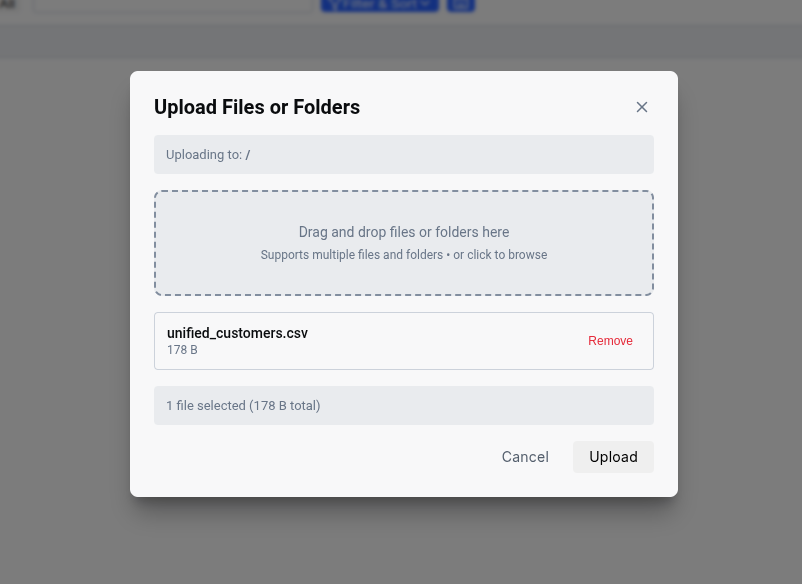
The upload interface supports drag-and-drop functionality for adding files to storage systems.
Upload Features:
- Drag & Drop: Drop files or entire folders onto the upload zone
- Click to Browse: Traditional file picker for desktop workflows
- Multiple Files: Upload dozens of files simultaneously
- Progress Tracking: Real-time upload status and file size display
- Context Aware: Automatically uploads to the currently selected path
Example:
Upload CSV files directly to a specific S3 path like s3://data-lake/raw/sales/.
3. File Preview
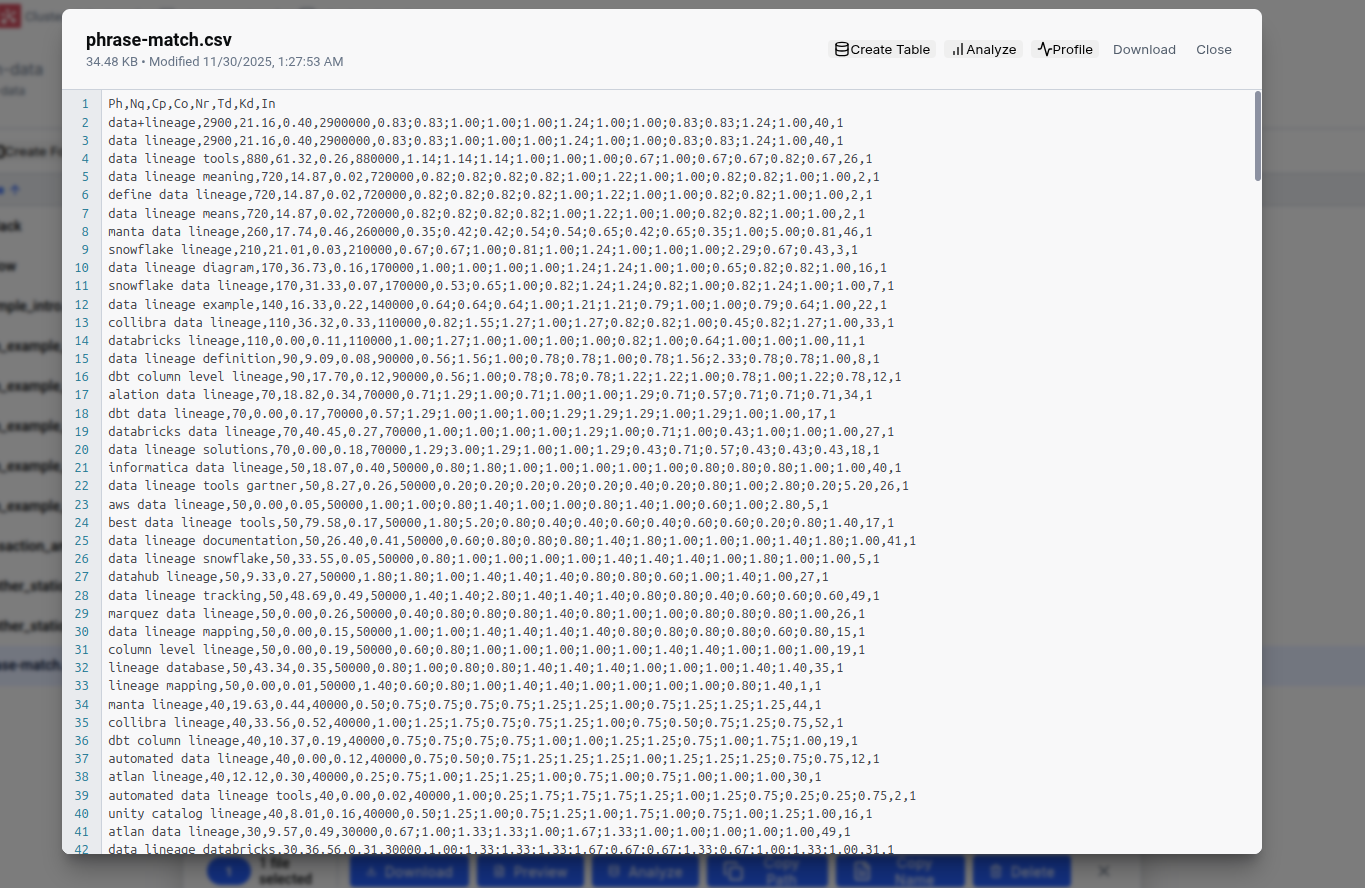
File contents can be viewed in the browser without downloading.
Preview Capabilities:
- CSV Files: Line-numbered text view with proper formatting
- Parquet Files: Column-aware preview with data type inference
- Large Files: Efficiently handles files up to 100MB with pagination
- Format Validation: Identify malformed rows or encoding issues
This allows for validation of file format and content before processing.
4. Table Creation
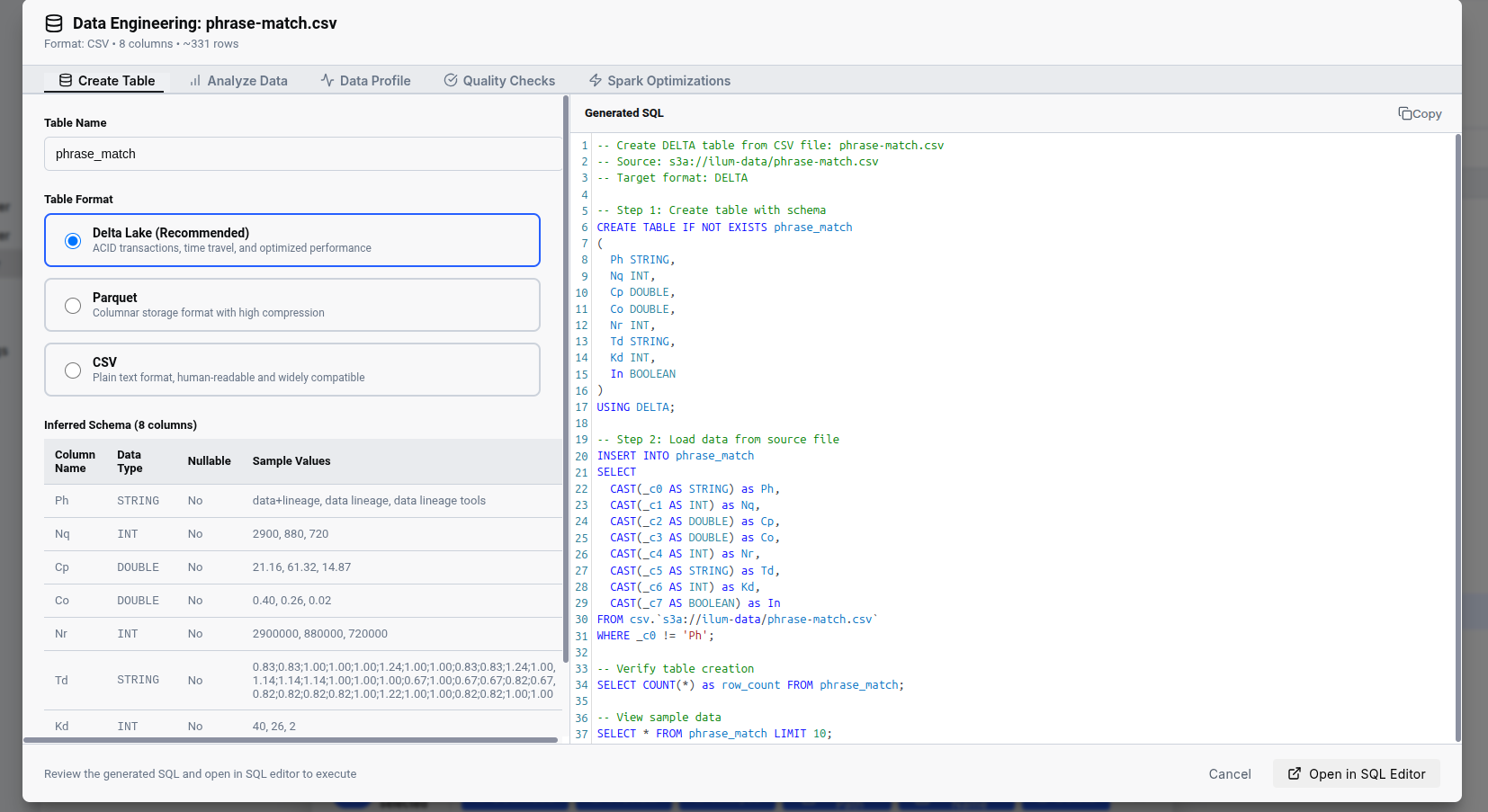
The table creation feature converts raw files into queryable tables with automatic schema inference.
Workflow:
- Select a CSV or Parquet file in the explorer
- Click "Create Table" in the action menu
- Review the inferred schema and column types
- Select the table format (Delta Lake, Parquet, or CSV)
- Execute the generated SQL to create the table
Supported Table Formats:
Delta Lake
- ACID Transactions: Read and write consistency
- Time Travel: Query historical versions with
VERSION AS OF - Schema Evolution: Add columns without breaking existing queries
- Optimized Performance: Automatic file compaction and statistics
Parquet
- Columnar Storage: Efficient compression and query performance
- Wide Compatibility: Works with Hive, Presto, and Athena
- No Metadata: Simple format without transaction logs
CSV
- Human-Readable: Plain text format for maximum compatibility
- Schema-on-Read: Flexible for exploratory analysis
Generated SQL: The system generates Spark SQL that includes:
- Schema definition with inferred data types
CREATE TABLE IF NOT EXISTSfor idempotencyUSING DELTAclause for format specificationINSERT INTO ... SELECTwith proper type casting- Source file path resolution
5. Data Profiling
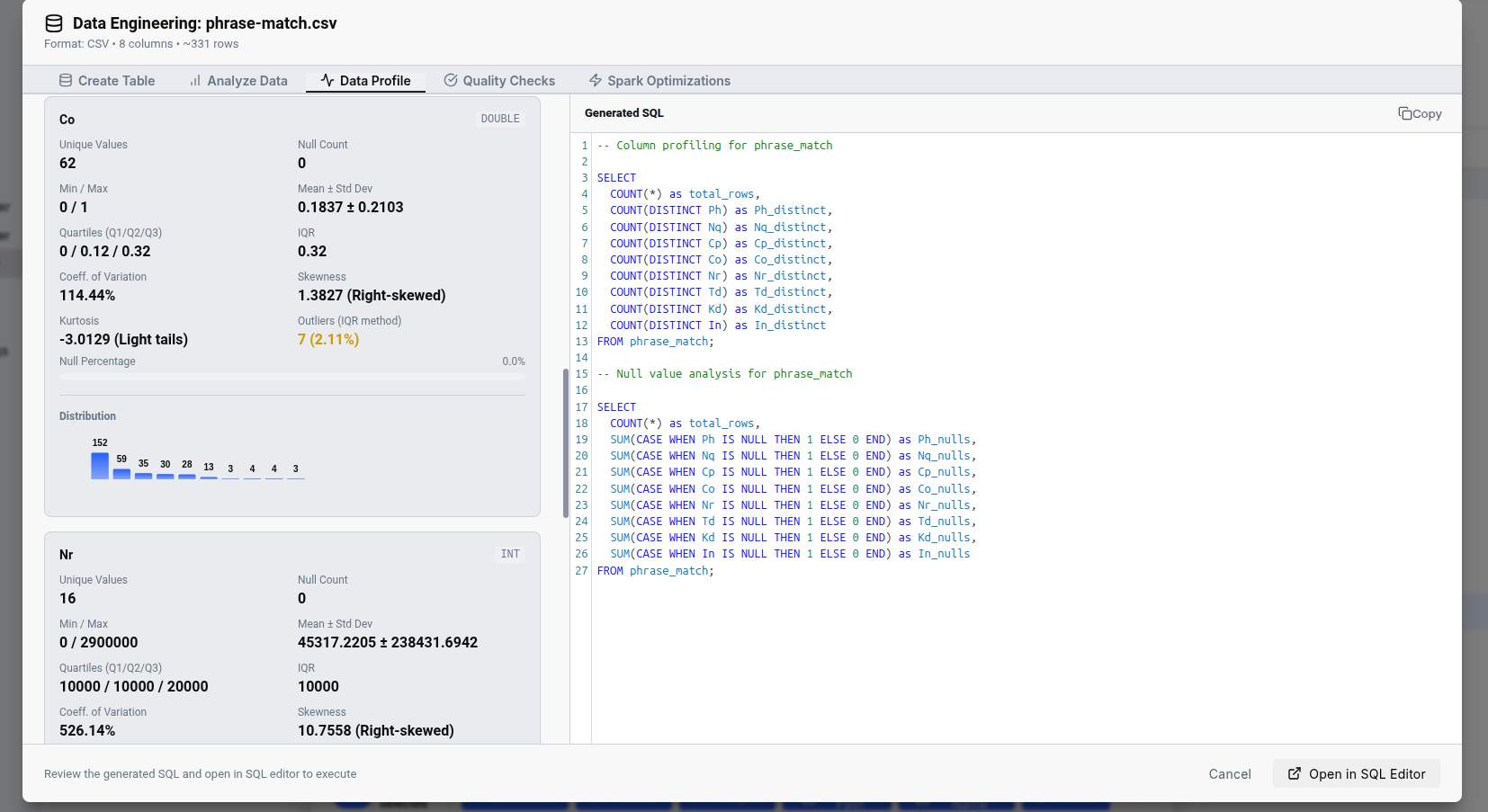
The profiling feature analyzes data quality through automated statistical analysis.
Automated Statistics:
- Unique Values: Detect cardinality and potential join keys
- Null Count: Identify missing data issues
- Min/Max/Mean: Understand numeric distributions
- Standard Deviation: Spot outliers and data quality issues
- Quartiles (Q1/Q2/Q3): Analyze data spread
- Coefficient of Variation: Measure relative variability
- Skewness & Kurtosis: Detect non-normal distributions
Visual Profiling:
- Histograms: Distribution charts for numeric columns
- Outlier Detection: IQR-based outlier identification
- Null Percentage: Visual indicator of data completeness
Profiling helps identify data quality issues before running processing jobs on large datasets.
6. Data Grid
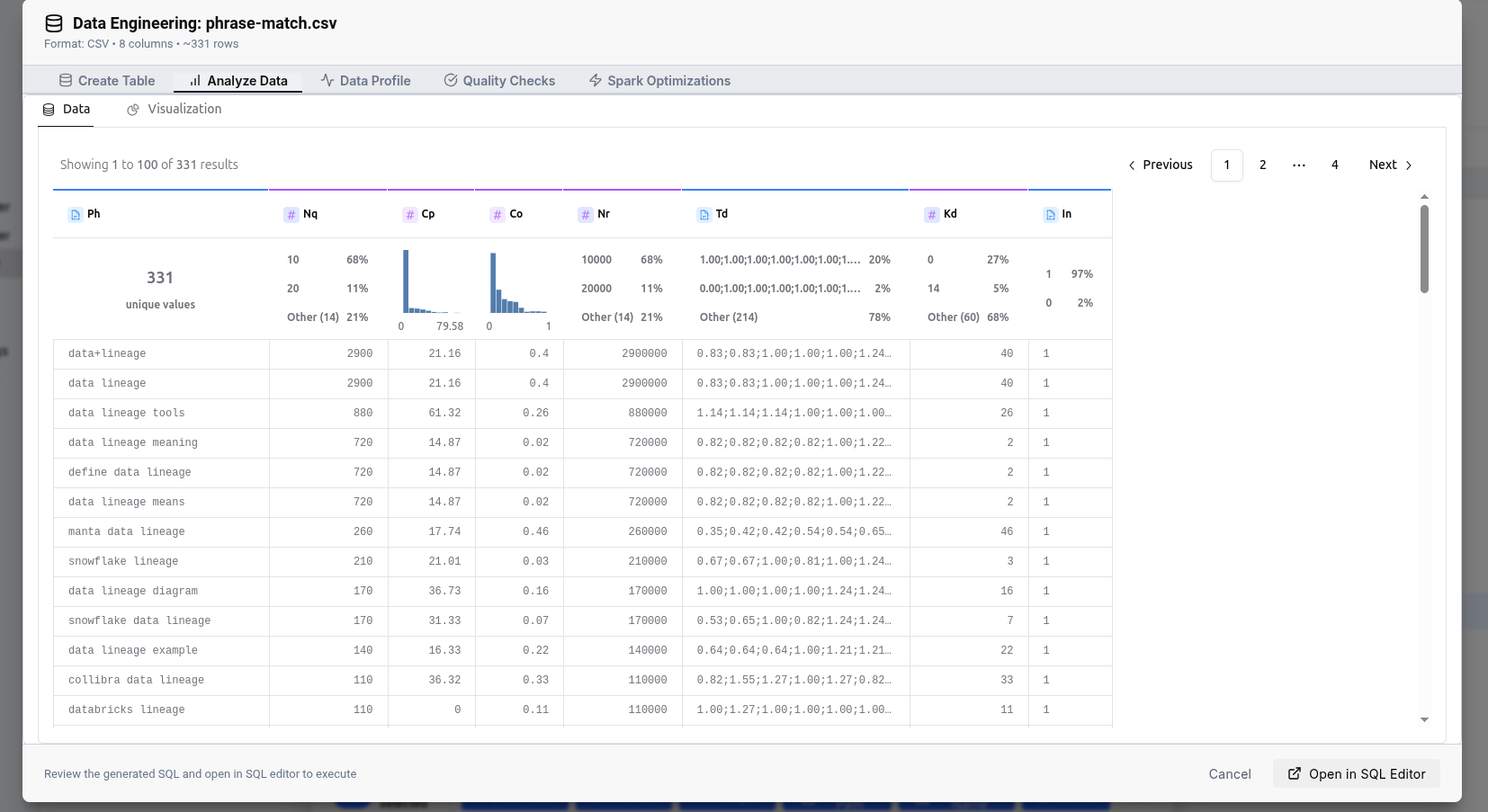
The data grid displays parsed file contents in a tabular format.
Grid Features:
- Paginated View: Navigate large datasets 100 rows at a time
- Column Headers: See exact column names and data types
- Sort & Filter: Organize data for easier analysis
- Full Data Display: Displays actual values without truncation
The grid can be used to inspect specific rows or verify data formats.
How It Works
Architecture
- Central Metadata Store: Cluster and storage configurations are maintained in Ilum's database
- Cloud Storage Access: S3, GCS, and Azure use native HTTP APIs with managed credentials
- HDFS Access: Direct RPC connections via Hadoop client libraries
- Spark Integration: Table creation and profiling leverage Apache Spark for distributed processing
Security Model
- No Direct Credentials: Users never see or manage storage credentials
- Role-Based Access: Permissions are enforced at the Ilum level
- Audit Logging: All file operations and table creations are logged
- Encryption: Data in transit uses TLS/SSL
Use Cases
Data Onboarding
Upload CSV files, profile data quality, and create Delta tables for downstream processing.
Data Exploration
Browse production data lakes to verify file formats, check partition structures, and validate data freshness before building pipelines.
Quality Validation
Before running expensive ETL jobs, profile source files to catch schema mismatches, encoding issues, or missing values.
Schema Discovery
Infer schemas from Parquet files and generate CREATE TABLE statements.
Best Practices
- Profile Before Table Creation: Run data profiling before creating production tables to identify quality issues
- Delta Lake for ACID Operations: Use Delta format for tables that require updates, deletes, or time travel
- Review Generated SQL: Examine the generated SQL before execution
- Organize by Layers: Structure your storage with
/raw,/staging, and/curatedfolders - Validate Previews: Use the file preview feature to spot encoding or delimiter issues before ingestion
Limitations
- Preview Size: File previews are limited to the first 1,000 lines or 100MB
- Profile Sampling: Data profiling analyzes up to 10,000 rows for performance
- Binary Files: Only CSV and Parquet files support preview and profiling
- Large Directories: Directories with >10,000 files may have slower load times