Ilum's Jupyter via VS Code on Local Machine
This guide explains how to connect your local VS Code installation to Ilum's Jupyter kernel, allowing you to work with Ilum notebooks directly from your preferred development environment while using Ilum's Spark clusters and data infrastructure.
Prerequisites
Before you begin, ensure you have the following:
- Local VS Code Installation: Download and install VS Code on your machine
- VS Code Extensions:
- kubectl Access: Configured access to your Ilum cluster with appropriate permissions
- Ilum JupyterLab Service: The Ilum JupyterLab service should be running in your cluster
Methods of connecting to Ilum's JupyterLab
There are two primary ways to connect VS Code to Ilum. Choose the method that best fits your workflow:
| Feature | Method 1: Jupyter Server URL (HTTP) | Method 2: SSH Tunnel |
|---|---|---|
| Best For | Quick access, simple setup, firewalled environments | Full development experience, terminal usage, file management |
| Setup Complexity | Low (Port-forward only) | Medium (Requires SSH keys & config) |
| File Management | Manual upload/download required | Direct access to remote filesystem |
| Performance | "Remote" feel (slight latency) | "Local" feel (native performance) |
| Requirements | kubectl access | kubectl access + SSH client |
1. Connect via Jupyter Server URL
Connects VS Code to the running Jupyter server via HTTP. This is the simplest method for quick tasks or when SSH ports are blocked.
2. Connect via SSH Tunnel
Connects VS Code directly to the Jupyter pod using SSH. This provides a robust remote development environment where VS Code runs directly on the remote pod.
Connect via Jupyter Server URL
Step 1: Expose the Jupyter Service
First, you need to expose the Ilum JupyterLab service to your local machine. You have several options:
- Option A: Port Forwarding (Recommended)
- Option B: NodePort
- Option C: LoadBalancer
Port Forwarding (Recommended):
kubectl port-forward svc/ilum-jupyter 8888:8888
This command creates a secure tunnel from your local machine's port 8888 to the Ilum JupyterLab service. Keep this terminal session open while working with the notebooks.
Using NodePort Service:
kubectl expose deployment ilum-jupyter --type NodePort --port 8888 --name ilum-jupyter-external
kubectl get svc ilum-jupyter-external
Then use the external IP and NodePort in your VS Code connection URL.
Using LoadBalancer:
kubectl expose deployment ilum-jupyter --type LoadBalancer --port 8888 --name ilum-jupyter-external
kubectl get svc ilum-jupyter-external
Use the external LoadBalancer IP in your VS Code connection URL.
Step 2: Create or Open a Notebook File
In VS Code, create a new file with the .ipynb extension or open an existing Jupyter notebook file.
Step 3: Select Kernel
Once you have a notebook file open, click on the "Select Kernel" button in the top-right corner of the notebook interface.

Step 4: Choose Existing Jupyter Server
From the kernel selection menu, select the "Existing Jupyter Server" option.

Step 5: Enter Remote URL
You'll be prompted to specify the URL of the running Jupyter server. Enter one of the following connection URLs:
- Option A: Using Port Forward
- Option B: Direct Service Access
http://localhost:8888/external/jupyter
If you have direct access to the ilum-jupyter service (e.g., via NodePort or LoadBalancer), substitute localhost:8888 with your service address:
http://your-service-address:port/external/jupyter

Step 6: Allow HTTP Connection
VS Code will show a security warning about connecting over HTTP without a token. Since this is a secure port-forward connection to your trusted Ilum cluster, click "Yes" to allow the HTTP connection.

Step 7: Select the Python Kernel
Finally, choose the "ipykernel" option from the available kernels. This will be the Python kernel from your Ilum JupyterLab environment.

Working with Remote Spark Kernels
Once connected, you can write and execute notebook cells just as you would in Ilum's JupyterLab interface. The code runs remotely on the Ilum cluster, giving you immediate access to:
- Interactive Spark Clusters: Use Sparkmagic commands like
%manage_sparkand%%sparkto control Spark sessions. - Cloud Data Storage: Access your Ilum data volumes and S3/MinIO storage directly from code. For easier file management, see the VS Code MinIO Integration Guide.
- Pre-configured Libraries: All pre-installed libraries and packages from the Ilum Docker environment.
- Scalable Resources: Computational resources allocated to your Ilum workspace.
Example: Running Interactive Spark Jobs in VS Code
# Load sparkmagic extension
%load_ext sparkmagic.magics

# Start a Spark session using Sparkmagic
%manage_spark

# Run Spark code
%%spark
    rdd = sc.parallelize([1, 2, 3, 4, 5, 6, 7, 8, 9, 10])
    print(rdd.count())
Using IlumIntro Tutorials Locally
You can access and work with the IlumIntro tutorial notebooks that are available in your Ilum JupyterLab environment. These notebooks provide guided examples and tutorials for using Ilum's features.
To work with IlumIntro notebooks:
- Access from JupyterLab: First, open the IlumIntro notebooks in your Ilum JupyterLab interface
- Export to Local: Download the notebook files (
.ipynb) to your local machine - Open in VS Code: Open these files in VS Code using the connection established above
- Work Locally: Edit and run the notebooks in VS Code while maintaining the connection to Ilum's compute resources
For more information about IlumIntro notebooks and tutorials, see the Notebook Usage Guide.
Import/Export Workflow for Notebooks
Exporting from JupyterLab to VS Code
- In Ilum JupyterLab, right-click on the notebook file.
- Select "Download" to save the
.ipynbfile to your local machine. - Open the downloaded file in VS Code.
- Follow the connection steps above to link it to your Ilum kernel.
Importing from VS Code to JupyterLab
- Save your notebook in VS Code (Ctrl+S / Cmd+S)
- Upload the
.ipynbfile to your Ilum JupyterLab workspace:- Use the file browser in JupyterLab
- Click the upload button and select your notebook file
- Alternatively, use Git if your workspace is connected to version control
Troubleshooting
Click to expand troubleshooting steps
Connection Issues
-
Port already in use: If port 8888 is busy, use a different local port:
Port Forward Overridekubectl port-forward svc/ilum-jupyter 8889:8888Then use
http://localhost:8889/external/jupyterin VS Code. -
Service not found: Verify the correct service name and namespace:
Get Jupyter Servicekubectl get svc | grep jupyter
Kernel Issues
- Kernel not starting: Ensure the port-forward connection is active and the URL is correct
- Authentication errors: Verify that your kubectl context has the necessary permissions
- Library not found: Remember that code executes on the Ilum cluster, so only libraries available in the Ilum environment can be used
Performance Considerations
- Network latency: Code execution happens remotely, so there may be slight delays compared to local execution
- Large outputs: Avoid displaying very large datasets directly; use
.head(),.sample(), or similar methods - Session management: Close unused kernels to free up cluster resources
Security Notes
- All code execution happens within your Ilum cluster's security boundaries
- No sensitive data is transmitted outside your cluster environment
- Always use trusted networks when establishing these connections
Connect via SSH Tunnel
This section provides a template for connecting to Ilum's Jupyter environments directly via VS Code's Remote-SSH extension. This approach allows you to work directly within the pod environment rather than connecting to the Jupyter server via HTTP.
Prerequisites for Remote-SSH Connection
- VS Code Remote-SSH Extension: Install the Remote-SSH extension
- JupyterLab (Standalone)
- JupyterHub (Multi-user)
Step 1: Enable SSH mode in JupyterLab deployment
Firstly we need to generate secret with SSH keys and enable SSH access in the Jupyter deployment. You can accomplish this by upgrading the Helm release with SSH enabled.
Generate SSH keys if you don't have them already:
mkdir -p jupyter-ssh-keys
cd jupyter-ssh-keys

# Generate RSA, ECDSA, and ED25519 host keys
ssh-keygen -t rsa -b 4096 -f ssh_host_rsa_key -N ""
ssh-keygen -t ecdsa -b 521 -f ssh_host_ecdsa_key -N ""
ssh-keygen -t ed25519 -f ssh_host_ed25519_key -N ""

# Optional: create authorized_keys for jovyan user
ssh-keygen -t ed25519 -C "ilum-jupyter" -f jovyan_id_ed25519 -N ""
cp jovyan_id_ed25519.pub authorized_keys
This command will create all keys needed for SSH. Now in jupyter-ssh-keys you have:
- ssh_host_rsa_key
- ssh_host_rsa_key.pub
- ssh_host_ecdsa_key
- ssh_host_ecdsa_key.pub
- ssh_host_ed25519_key
- ssh_host_ed25519_key.pub
- authorized_keys
- jovyan_id_ed25519
- jovyan_id_ed25519.pub
Now we have to create kubernetes secret with these keys:
kubectl create secret generic ilum-jupyter-ssh-keys \
  --from-file=ssh_host_rsa_key=ssh_host_rsa_key \
  --from-file=ssh_host_ecdsa_key=ssh_host_ecdsa_key \
  --from-file=ssh_host_ed25519_key=ssh_host_ed25519_key \
  --from-file=authorized_keys=authorized_keys
Then upgrade the Helm release with SSH enabled:
helm upgrade ilum ilum/ilum \
    --set ilum-jupyter.ssh.enabled=true \
    --set ilum-jupyter.ssh.sshdConfig.customConfig[0]="StrictModes no" \
    --set ilum-jupyter.resources.limits.memory=3Gi \
    --set ilum-jupyter.resources.requests.memory=2Gi \
    --reuse-values
Step 2: Configure SSH Connection
In file ~/.ssh/config, add a new host configuration for the Jupyter pod. By default, ilum-jupyter in ssh mode exposes ssh with nodePort service, but you can also utilize port-forwarding to access the pod. Here is an exemplary configuration.
Fill the HostName, User, Port, and IdentityFile fields according to your setup:
Fetch the service to find the NodePort (the port mapped on the node, e.g., 31309):
kubectl get svc ilum-jupyter-ssh
Then, find the Node IP address where the cluster is running. Run the following command to list nodes and their IPs:
kubectl get nodes -o wide
Pick the INTERNAL-IP (or EXTERNAL-IP if you are connecting from outside the cluster network) of any active node.
Use this Node IP as the HostName and the NodePort as the Port in your SSH config.
Add to your SSH config (~/.ssh/config):
Host ilum-jupyter
    HostName <node_ip_address>
    User jovyan
    Port <nodeport_from_svc>
    IdentityFile (path to directory created above/jovyan_id_ed25519, eg. ~/jupyter-ssh-keys/jovyan_id_ed25519)
    IdentitiesOnly yes
    StrictHostKeyChecking no
Step 3: Connect via VS Code
- Open VS Code Command Palette (Ctrl+Shift+P / Cmd+Shift+P)
- Type "Remote-SSH: Connect to Host"
- Select your configured host:
ilum-jupyter - VS Code will open a new window connected to the pod environment
Step 1: Enable SSH mode in JupyterHub deployment
For JupyterHub, SSH is configured per-user. Generate SSH keys if you don't have them already:
mkdir -p jupyterhub-ssh-keys
cd jupyterhub-ssh-keys

# Generate RSA, ECDSA, and ED25519 host keys
ssh-keygen -t rsa -b 4096 -f ssh_host_rsa_key -N ""
ssh-keygen -t ecdsa -b 521 -f ssh_host_ecdsa_key -N ""
ssh-keygen -t ed25519 -f ssh_host_ed25519_key -N ""

# Create authorized_keys for jovyan user
ssh-keygen -t ed25519 -C "jupyterhub-user" -f user_key -N ""
cp user_key.pub authorized_keys
Create Kubernetes secret with these keys:
kubectl create secret generic ilum-jupyterhub-ssh-keys \
  --from-file=ssh_host_rsa_key=ssh_host_rsa_key \
  --from-file=ssh_host_ecdsa_key=ssh_host_ecdsa_key \
  --from-file=ssh_host_ed25519_key=ssh_host_ed25519_key \
  --from-file=authorized_keys=authorized_keys
Then upgrade the Helm release with SSH enabled:
helm upgrade ilum ilum/ilum \
    --set ilum-jupyterhub.ssh.enabled=true \
    --reuse-values
StrictModes no is already set by default in JupyterHub chart, so you don't need to specify it explicitly.
Step 2: Configure SSH Connection
First, log into JupyterHub UI to start your user server. Once running, the SSH operator will create a service for your user.
Fetch the SSH service for your user to find the NodePort:
kubectl get svc ilum-jupyter-ssh-<username>
Replace <username> with your JupyterHub username (e.g., ilum-jupyter-ssh-ilumadmin).
Then, find the Node IP address:
kubectl get nodes -o wide
Add to your SSH config (~/.ssh/config):
Host ilum-jupyterhub
    HostName <node_ip_address>
    User jovyan
    Port <nodeport_from_svc>
    IdentityFile ~/jupyterhub-ssh-keys/user_key
    IdentitiesOnly yes
    StrictHostKeyChecking no
Step 3: Connect via VS Code
- Open VS Code Command Palette (Ctrl+Shift+P / Cmd+Shift+P)
- Type "Remote-SSH: Connect to Host"
- Select your configured host:
ilum-jupyterhub - VS Code will open a new window connected to your JupyterHub user pod
Per-User Mode (Alternative)
In per-user mode, each user has their own SSH secret and dedicated SSH service. This provides better isolation and allows individual key management.
Step 1: Generate User-Specific SSH Keys
Create a directory for the user's keys (replace <username> with the actual JupyterHub username):
mkdir -p jupyterhub-ssh-keys-<username>
cd jupyterhub-ssh-keys-<username>

# Generate user's authorized key
ssh-keygen -t ed25519 -C "<username>-jupyterhub" -f user_key -N ""
cp user_key.pub authorized_keys
Step 2: Create User-Specific Secret
Create a secret following the naming template ssh-keys-{username}:
kubectl create secret generic ssh-keys-<username> \
  --from-file=authorized_keys=authorized_keys
Host keys are shared from the master secret (ilum-jupyterhub-ssh-keys), so you only need to provide the authorized_keys file in the per-user secret.
Step 3: Enable Per-User Mode
Upgrade the Helm release with per-user mode enabled:
helm upgrade ilum ilum/ilum \
    --set ilum-jupyterhub.ssh.enabled=true \
    --set ilum-jupyterhub.ssh.mode=perUser \
    --reuse-values
Step 4: Find User's SSH Service
After logging into JupyterHub UI, the SSH operator will create a dedicated service for each user:
kubectl get svc | grep "ssh-<username>"
Example output:
ilum-jupyter-ssh-alice NodePort 10.101.200.99 <none> 2222:31234/TCP
Step 5: Configure SSH for the User
Add to your SSH config (~/.ssh/config):
Host ilum-jupyterhub-<username>
    HostName <node_ip_address>
    User jovyan
    Port <user_nodeport>
    IdentityFile ~/jupyterhub-ssh-keys-<username>/user_key
    IdentitiesOnly yes
    StrictHostKeyChecking no
Step 6: Connect via VS Code
- Open VS Code Command Palette (Ctrl+Shift+P / Cmd+Shift+P)
- Type "Remote-SSH: Connect to Host"
- Select your configured host:
ilum-jupyterhub-<username> - VS Code will connect to the user's dedicated pod
- Individual key management: Each user manages their own SSH keys
- Better isolation: Separate SSH services per user
- Easier access control: Add/remove users by creating/deleting secrets
- Audit trail: Track SSH access per user via service logs
Step 4: Configure VS Code for Jupyter
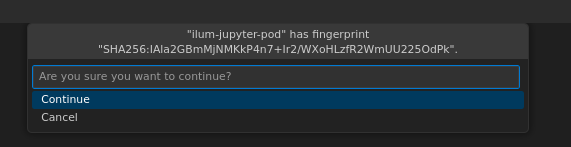
- Continue on fingerprint information
- Open folder
/home/jovyanin the remote window

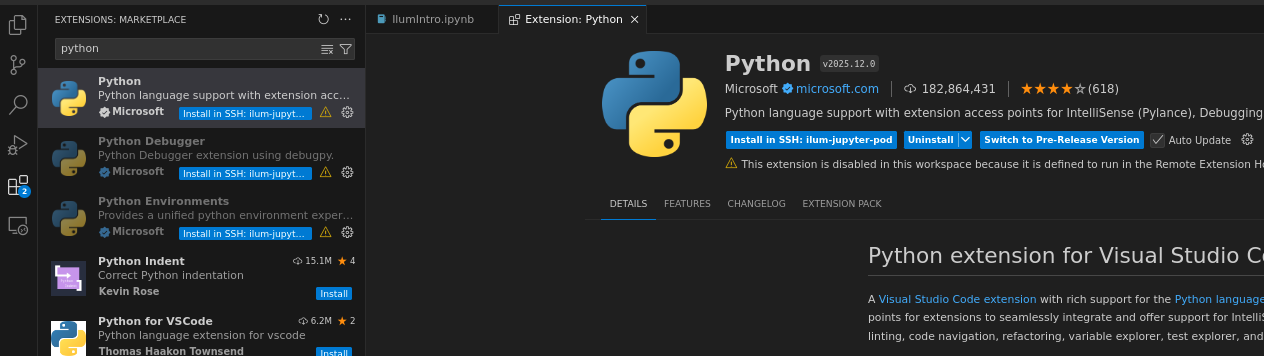
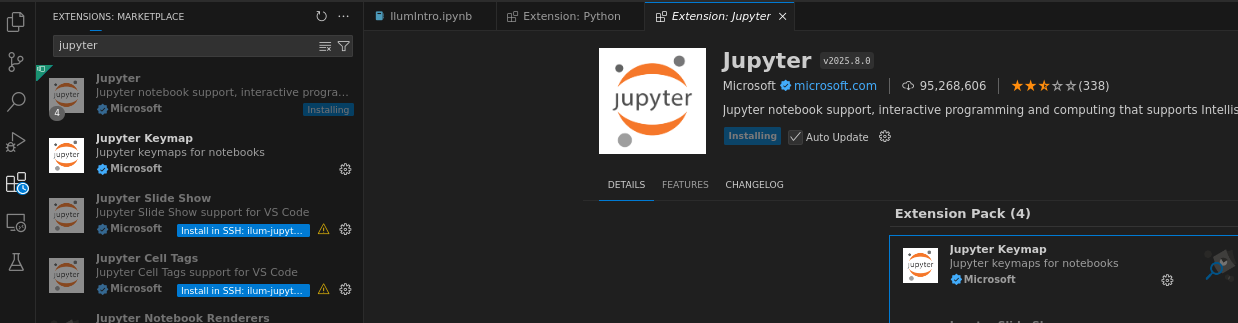
- Install VS Code Extensions in SSH remote window (Python, Jupyter)
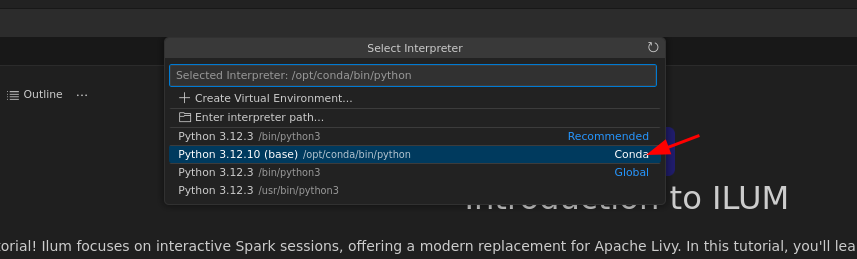
- Select the Python interpreter in the remote window (Python 3)
- With kernel selected, you can now create or open
.ipynbfiles and run code directly in the Jupyter pod environment.
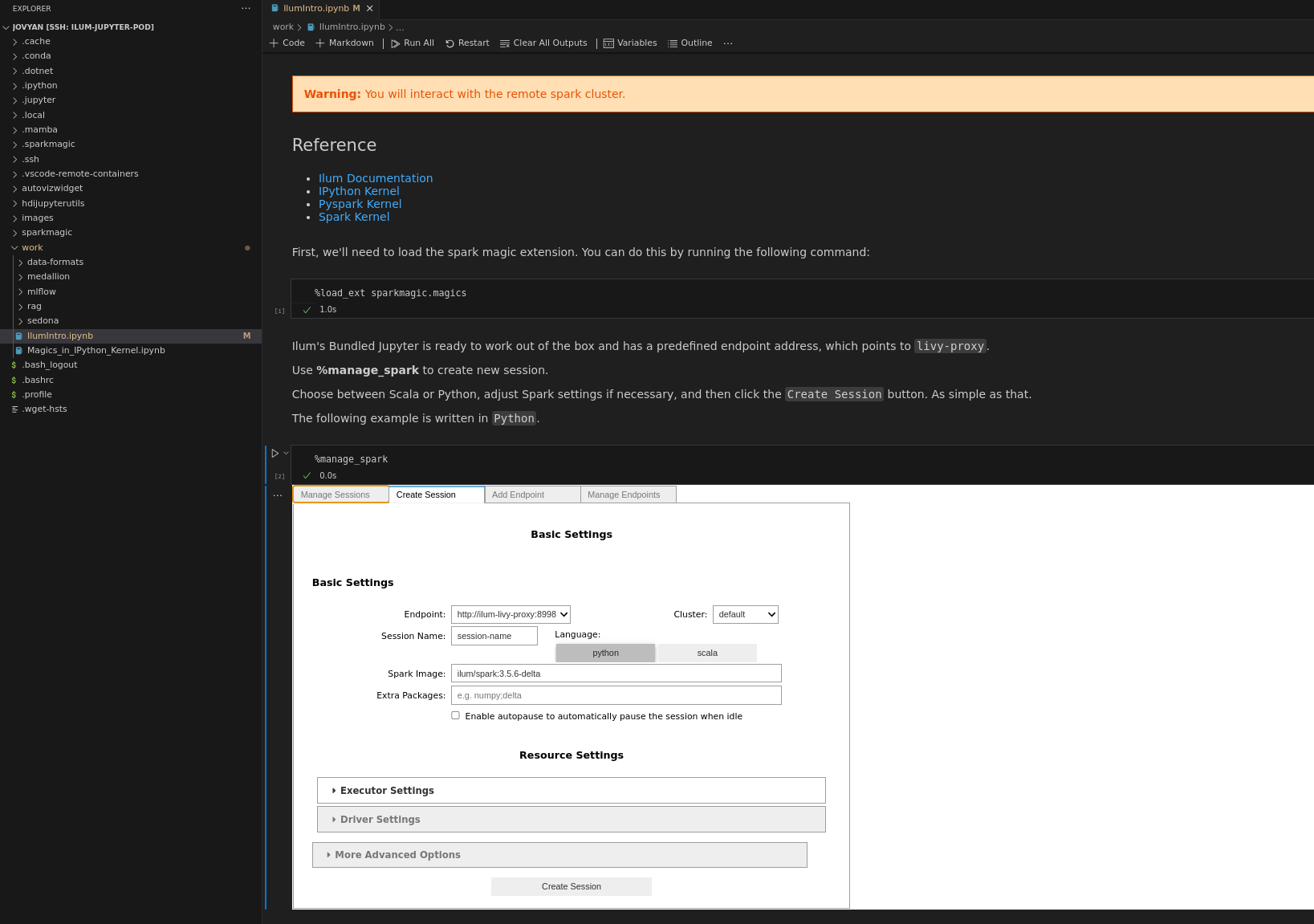
- You can monitor all of your workloads in the JupyterLab interface as well. Spark session started from VS Code will appear in the ILUM UI.
Benefits of the Remote-SSH Method
- Direct Pod Access: Work directly within the Kubernetes Jupyter pod environment.
- Full Filesystem Access: Browse and edit all files and directories in the remote pod via the VS Code sidebar.
- Native Performance: No network latency for file operations or terminal usage.
- Rich Development Environment: Full access to installed CLI tools, packages, and extensions running on the pod.
Considerations
- Network configuration: Requires proper SSH access and network routing to the cluster
- Security: Ensure SSH access follows your organization's security policies
- Pod lifecycle: Connection will be lost if the pod restarts or gets rescheduled
- Resource sharing: Multiple SSH connections share the same pod resources
The specific implementation details will vary based on your cluster configuration, network setup, and security requirements. This template should be customized according to your environment.
Troubleshooting
Click to expand troubleshooting steps
Connection Issues - disconnections
- SSH connection drops: Ensure jupyter pod has adequate resources as ssh might be resource consuming, you can always manipulate resources in the Helm chart values and upgrade the release.
- Firewall issues: Ensure that your local machine can reach the cluster nodes on the specified SSH port
- Incorrect SSH config: Double-check the
~/.ssh/configentries for typos or incorrect values - Permission Denied: If you see
PermissionDenied (publickey), ensure you have added--set ilum-jupyter.ssh.sshdConfig.customConfig[0]="StrictModes no"to your helm upgrade command. This is often required because Kubernetes mounted secrets may not have the strict file permissions (0600) required by default SSH configurations.
Kernel Issues
- Kernel not starting: Ensure the SSH connection is active and the Python interpreter is correctly set
- Extensions not working: Make sure the required VS Code extensions are installed in the remote environment, in case of jupyter pod restart you might need to reinstall them
- Kernel not responding / Instability: VS Code automatically installs extensions on the remote Jupyter server, which can significantly increase memory usage. If you experience kernel unresponsiveness or connection drops, this is often due to OOM (Out Of Memory) kills. Try increasing the memory limits (e.g., to 3Gi or more) as shown in the configuration step.
- Library not found: Remember that code executes in the Jupyter pod, so only libraries available in that environment can be used
Performance Considerations
- Network latency: While file operations are local to the pod, any external network calls will still be subject to latency
- Resource limits: Be aware of the resource limits of the Jupyter pod, as multiple users or heavy workloads can impact performance
- Session management: Close unused connections to free up pod resources
Security Notes
- All code execution happens within your Ilum cluster's security boundaries
- No sensitive data is transmitted outside your cluster environment
- Always use trusted networks when establishing these connections
Next Steps
Once you have VS Code successfully connected to your Ilum JupyterLab environment, explore:
- JupyterLab Features: Deep dive into Ilum's JupyterLab environment.
- Connect VS Code to MinIO: Browse and manage MinIO files directly from VS Code.
- Spark Integration Guide: Advanced Spark usage patterns and tutorials.
- Data Science Platform Features: Overview of Ilum's broader data science capabilities.
- Ilum Architecture: Understand the underlying Kubernetes and Spark infrastructure.
Support
For additional help or questions about VS Code integration with Ilum, contact us at [email protected] or refer to our Help documentation.